 Screens
Annotate screenshots
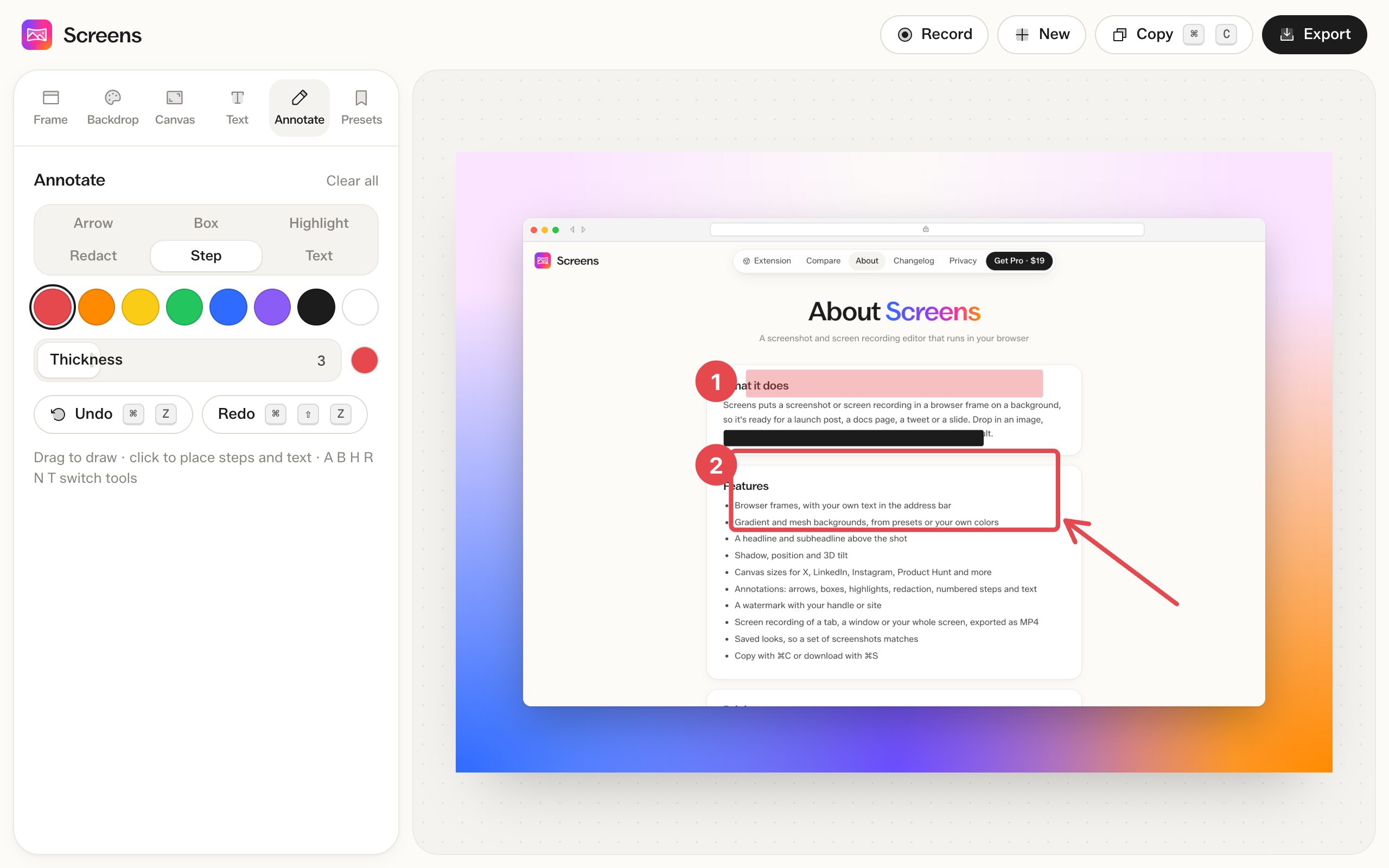
Add arrows, boxes, highlights, numbered steps and text, and cover private details before you share.
How to do it
- Open a screenshot and go to the Annotate tab.
- Pick a tool and a color.
- Drag on the screenshot to draw. Click to place a step number or text.
Tools
- Arrow (A) points at something
- Box (B) outlines an area
- Highlight (H) marks text like a highlighter
- Redact (R) covers an area with a solid block
- Step (N) places numbered circles, 1, 2, 3
- Text (T) adds a label
Redaction covers, it doesn't blur
Redact draws a solid block, so the text underneath is not in the exported image. Blurred text can sometimes be read back.
Colors and undo
Choose from 8 colors and a line thickness from 1 to 10. Undo with ⌘Z and redo with ⇧⌘Z. Step numbers stay in order when you undo one.
Questions
Are annotations free?
Yes. All annotation tools are free.
Can I move an annotation after drawing it?
No. Undo it and draw it again.