 Screens
Features · Pro
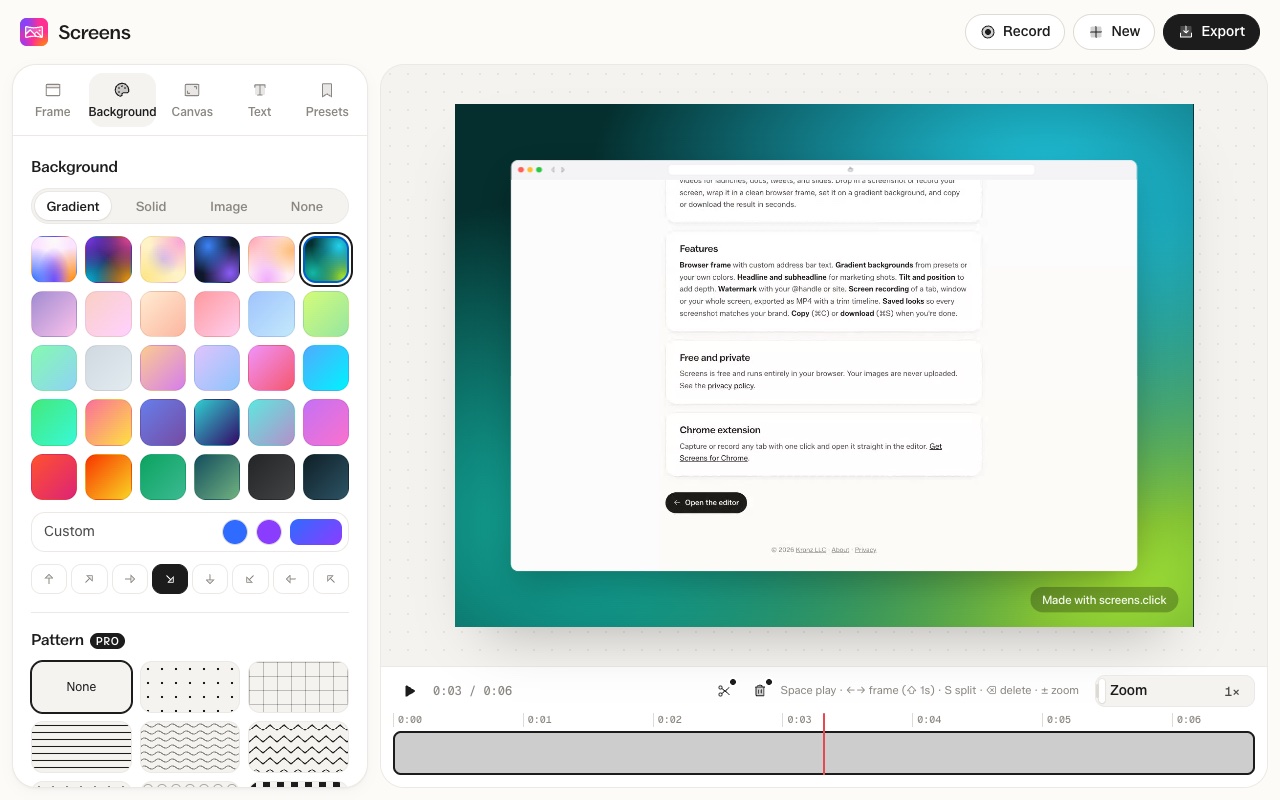
Trim and cut screen recordings
Split a recording on the timeline and delete the parts you don't need, then export an MP4.
How to do it
- Record your screen, or click New and open a video file.
- Move the playhead to where you want a cut and press S to split.
- Put the playhead on the part you don't want and press Delete.
- Export an MP4.
Keyboard shortcuts
- Space or K plays and pauses
- ← and → move one frame, with Shift one second
- S splits at the playhead
- Delete removes the clip under the playhead
- ⌘Z or Ctrl+Z undoes
- + and − zoom the timeline
Free and Pro
Splitting and deleting clips needs Pro. Without it you can play a recording, step through it frame by frame, and export the whole video.
Questions
Is video editing free?
No. Splitting and deleting clips is part of Pro, a one-time purchase.
Can I add music or voice?
No. Screens exports video without audio.
Can I undo a cut?
Yes. Press ⌘Z on a Mac or Ctrl+Z on Windows.