 Screens
Features · Needs the Chrome extension
Take full-page screenshots in Chrome
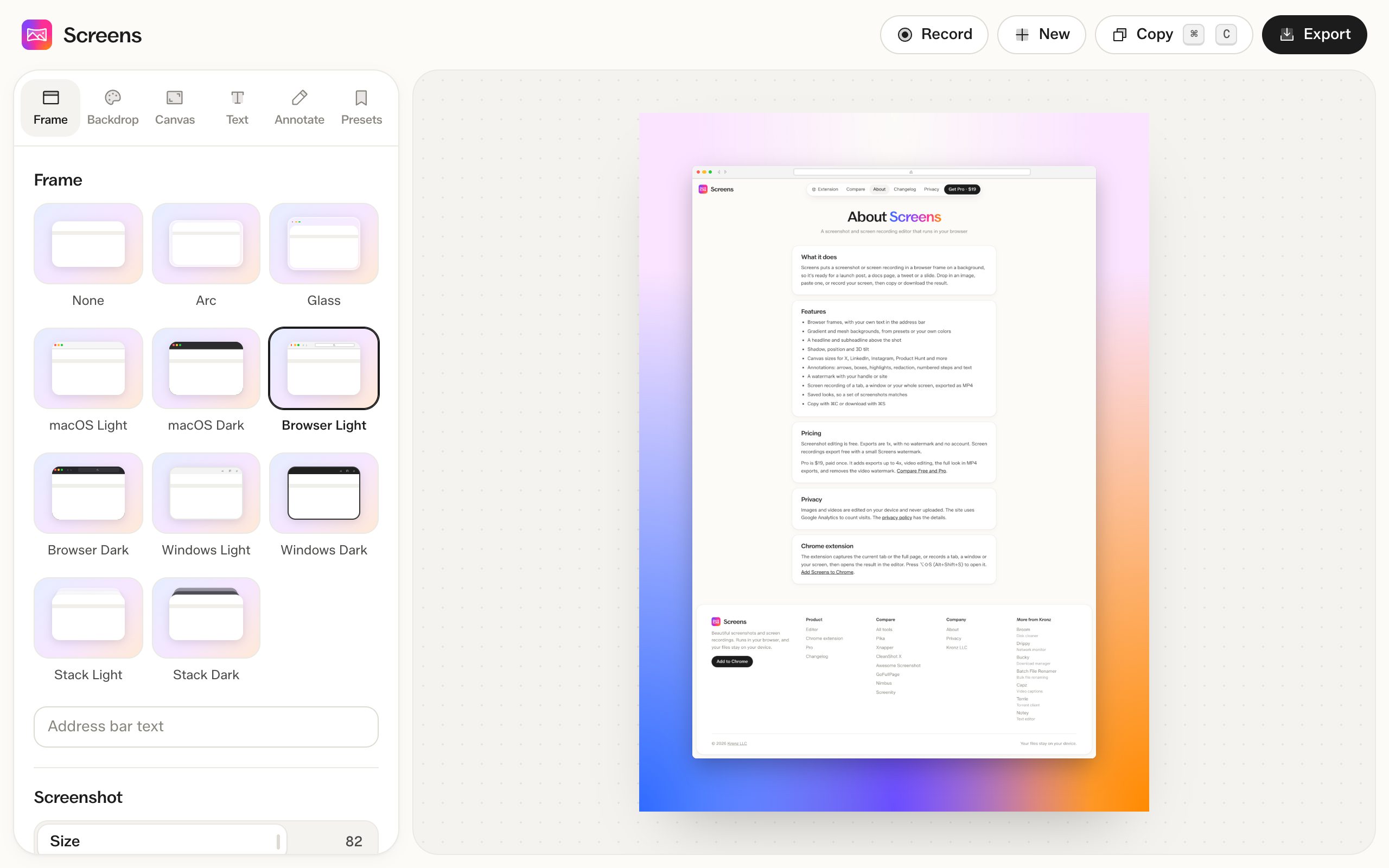
The Screens extension scrolls the page, joins each screen into one tall image, and opens it in the editor.
How to do it
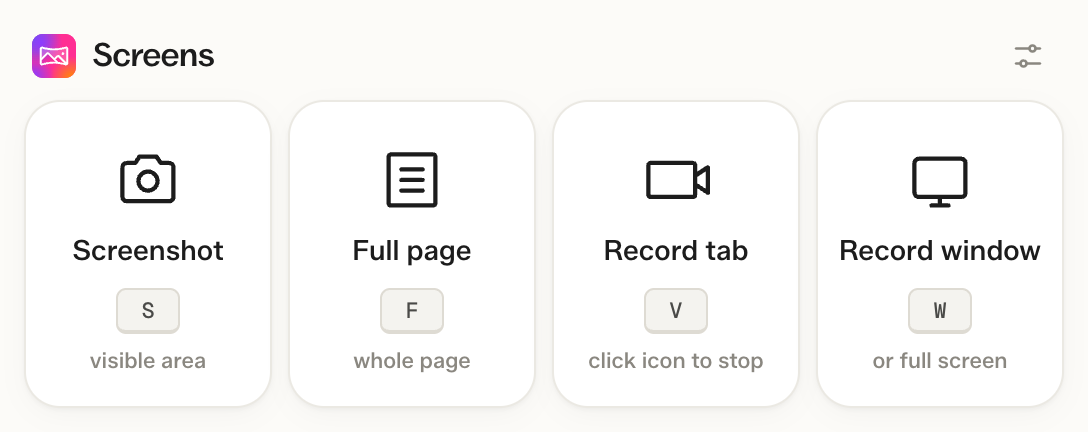
- Click the Screens icon in the Chrome toolbar, or press Alt+Shift+S (⌥⇧S on a Mac).
- Choose Full page, or press F.
- Wait while the page scrolls. It takes about half a second per screen.
- Add a frame or notes, then download or copy the image.
Works in web apps
Many web apps scroll a panel inside the page instead of the page itself. Screens finds that panel and captures all of it.
Headers show once
Fixed and sticky headers appear at the top of the image and are hidden further down, so they don't repeat on every screen.
Your page is left as it was
Scrollbars are hidden while Screens captures, and the page scrolls back to where you were when it's done.
Limits
Images can be up to 16,384 pixels tall, the most Chrome can draw. On a retina screen that is about 8,000 pixels of page. Chrome doesn't let extensions capture its own pages, like Settings or the Chrome Web Store, so there you get the visible area instead.
Questions
Is it free?
Yes. Full-page screenshots and 1x exports are free, with no watermark.
Does it work in the web editor?
No. Full-page capture needs the Chrome extension. In the web editor you can paste, drop or upload an image.
Can I save it as a PDF?
No. You can export PNG, JPG, WEBP or SVG.
Why is part of an embed cut off?
Some embeds, like videos and code demos, only load once they scroll into view. Scroll through the page once before you capture, so they load first.