 Screens
Record your screen to MP4
Record a browser tab, a window or your whole screen, then put the video on a background and export it as an MP4.
How to do it
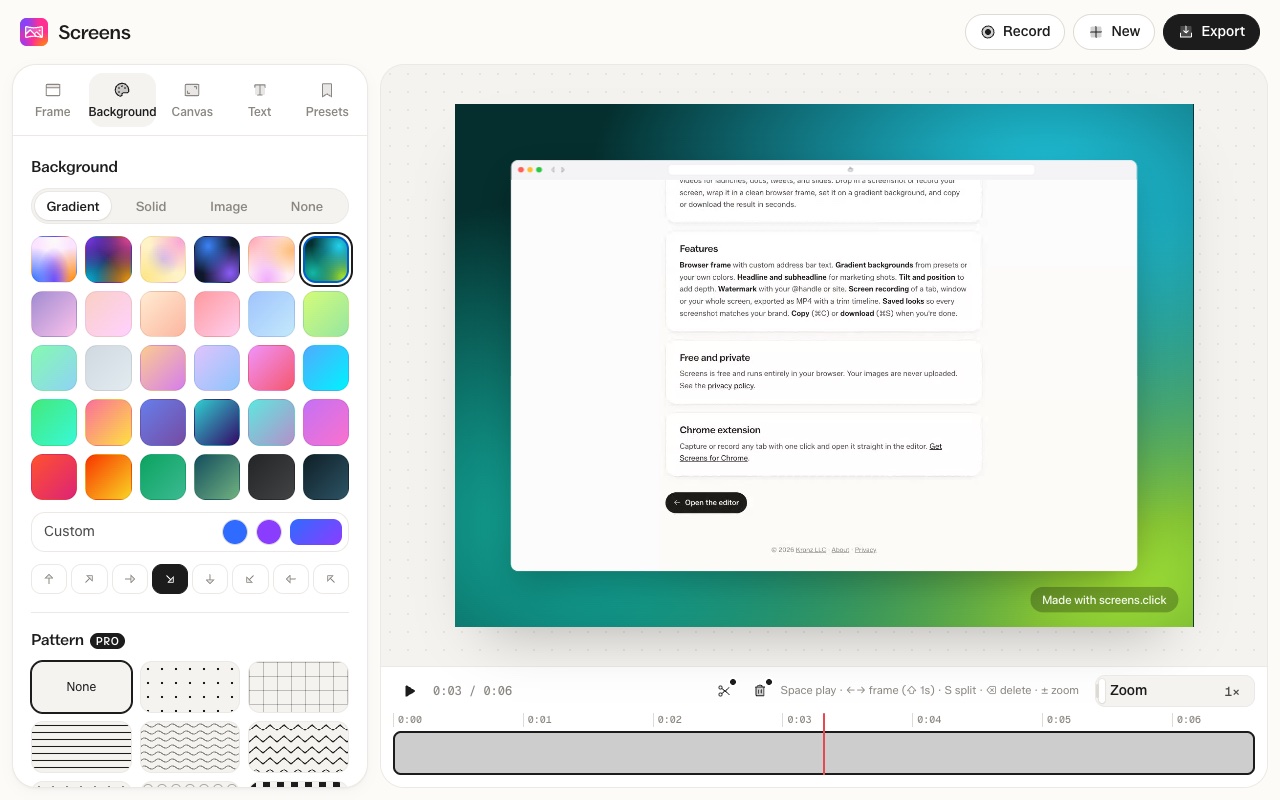
- In the extension, choose Record tab (V) or Record window (W). In the web editor, click Record.
- For a window or your whole screen, pick it in your browser's share dialog. Record tab starts straight away.
- Click the Screens icon to stop, or Stop in the web editor.
- The recording opens in the editor. Style it, then export an MP4.
Style it like a screenshot
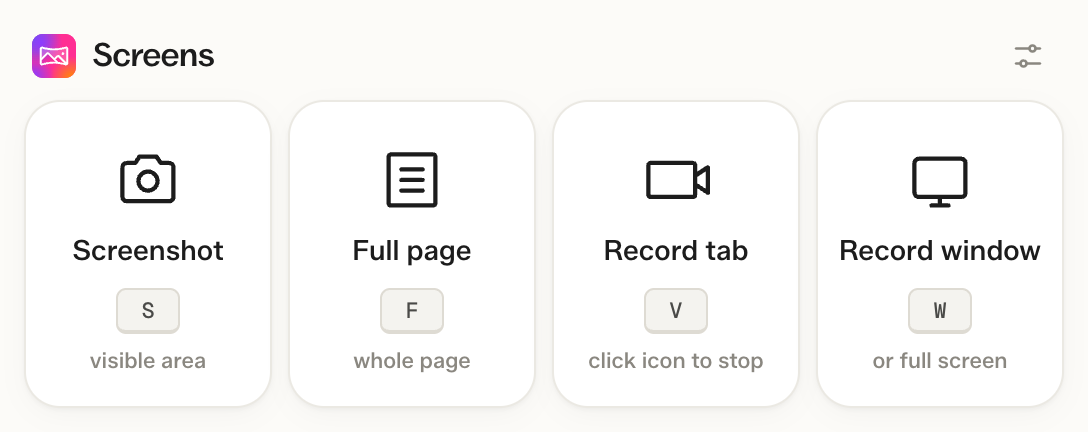
Frames, backgrounds, shadow and canvas sizes work on videos the same way they do on images.
What gets recorded
Video at 30 frames per second. Audio is not recorded.
Export
MP4 files play almost anywhere and can be up to 4K. A 30-second clip takes a minute or two to export.
Free and Pro
Free MP4 exports show a small "Made with screens.click" watermark. Pro removes it and adds video editing, 2x to 4x exports, and 3D tilt, patterns, texture, background images and text in videos.
Questions
Does it record audio?
No. Recordings are video only.
Where does the recording go?
It stays in your browser until you export it. Nothing is uploaded.
Can I record on my phone?
No. Screen recording needs a desktop browser.
Can I use a video I already have?
Yes. Click New in the editor and choose a video file.